
Passwords, Passphrases, and MFA — A Simple Guide
Plain-language NZ guide to stronger passphrases, less password reuse, safer recovery settings, password managers, and MFA.
Quick answer
Use a unique passphrase for every important account, store them in a password manager, and turn on MFA wherever it is offered. If you only fix three things, fix those three first.
Most account compromises start with a weak password or a password reused across multiple services. Both are fixable — and the fix does not require a perfect memory or a cybersecurity degree.
This guide covers what actually works, in plain language, for educators and students who want to protect their accounts without spending hours managing passwords.
Why password security specifically matters in a school context
Your school email account is probably connected to your student records system, your learning platform, your file storage, your communication tools, and sometimes your school's financial or admin systems. If an attacker gets access to that one account, they may be able to reach all of those (1).
The same applies to students — a compromised school account can be used to send convincing phishing messages to other students and staff, access personal information, or impersonate the account owner in fraudulent contexts.
That is why it is worth getting the password right, and why using a password manager and multi-factor authentication together makes a significant difference.
What makes a password actually strong
A strong password has three properties:
- it is long enough that it cannot be cracked by automated attempts
- it is unique — not reused across services
- it is not guessable from your personal information
Most people know not to use "password123" or their pet's name. The harder habit to build is using a different strong password for every service.
The practical solution is a passphrase. Instead of a short complicated password like "Kj8!xQ2", use a longer phrase that is easy for you to remember but hard for anyone else to guess:
"Correct horse battery staple" is better than "Tr0ub4dor&3" — longer, easier to remember, and significantly harder to crack (2).
For school accounts and services you use regularly, a passphrase that means something to you — but is not obviously tied to your life — works well. For example, a line from a favourite song or a nonsense sentence only you would think of.
The password manager question
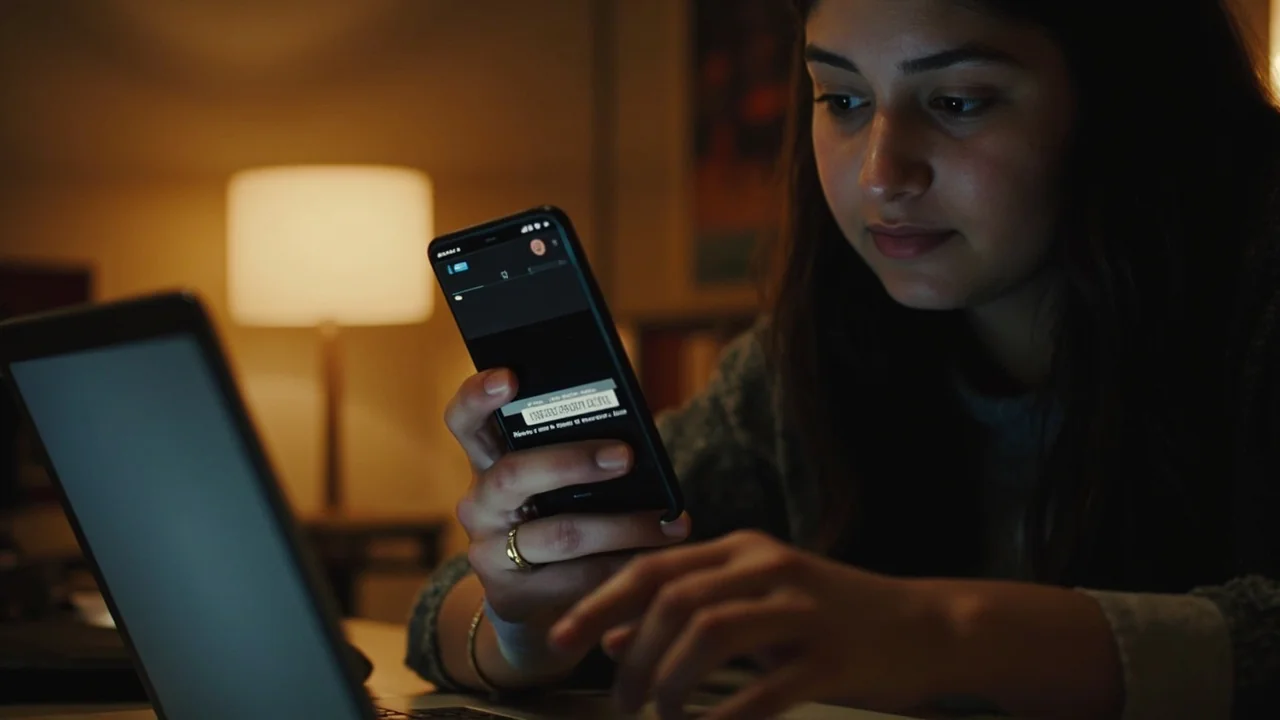
If you have more than a handful of accounts, remembering unique passwords for all of them is not realistic. A password manager:
- stores your passwords securely in one place
- generates strong random passwords for new accounts
- fills in your login details so you do not have to type or remember them
Most browsers have a built-in password manager. Dedicated tools like Bitwarden, 1Password, or KeePass offer more cross-device synchronisation and better security features. If your school provides a managed password manager, use it — it is already integrated with your account setup (3).
A password manager only needs one strong password to protect everything else. Make that one password a passphrase.Multi-factor authentication — what it is and why you should turn it on
MFA means that to log into your account, you need your password and something else — usually a code from your phone or an authenticator app, a fingerprint, or a hardware security key.
Even if your password is somehow exposed — through a data breach, a phishing page, or a reused password — MFA stops the attacker from getting in without also having your second factor (1)(4). Turn MFA on for any account that offers it, especially:
- your school email or student portal
- any platform that stores personal information about you
- accounts connected to payment or financial information
For most people, an authenticator app (Google Authenticator, Authy, or similar) is the most practical second factor. The code changes every 30 seconds, so even if someone sees one code, it will not work by the time they try to use it.
Safer recovery settings
When you set up password recovery options — a backup email, a phone number, security questions — treat them with the same care as the password itself:
- Use a backup email that is itself secured with a strong password and MFA
- Security questions should have answers that are not guessable from your public profiles — your mother's maiden name and your first pet's name are public information if you share much online
- If a service offers recovery codes, store them somewhere safe — a locked drawer or a password manager entry, not a note on your desk
What to do if your password has been exposed
If you learn that a service you use has had a data breach and your password may be among the exposed information:
- Do not wait — change that password immediately on any account where you used it
- Do not reuse the old password on any other service
- Turn on MFA on the affected account and any other account where you used the same password
- Check the account's recent activity — look for logins from unfamiliar locations or devices
- If the breach involved a school account, notify your IT team so they can monitor for related activity
HaveIBeenPwned (haveibeenpwned.com) lets you check whether your email has appeared in a known data breach. It is worth checking this periodically (5).
Password habits to build
These small habits, done regularly, make a meaningful difference:
- When you create a new account, use your password manager to generate a unique password — do not recycle an old one
- If you hear about a data breach for a service you use, change that password within days — do not let it linger
- Do not share passwords with friends, even close ones — they may not handle them as carefully as you do, and friendship changes
- If a device is lost or shared, change the passwords for your most important accounts as a precaution
Knowledge check
Test your understanding of password and account security with these questions. Remember to click on each question to reveal the answer.
Sources and references
[1] Google. (2025). Avoid and report phishing emails. https://support.google.com/mail/answer/8253
[2] National Cyber Security Centre UK. (2023). Password managers. https://www.ncsc.gov.uk/collection/top-tips-for-staying-secure-online/password-managers
[3] Bitwarden. (2025). Password manager for individuals. https://bitwarden.com/products/personal/
[4] New Zealand Police. (2024). Internet scams, spam and fraud. https://www.police.govt.nz/advice/email-and-internet-safety/internet-scams-spam-and-fraud
[5] HaveIBeenPwned. (2025). Have I been pwned? https://haveibeenpwned.com
What to do next
- Review your school email account security at myaccount.google.com/security-checkup and turn on MFA if it is not already active.
- Use the step-by-step MFA Setup Guide for Everyone if you need help choosing an authenticator app, passkey, or recovery codes.
- For school-wide rollout and shared staff accounts, see Password Managers for Schools — A NZ Guide.
- See What To Do When a Student Clicks a Phishing Link for the incident-response steps if a password has already been compromised.
- Check Cyber Security for New Zealand Educators for the broader educator safety pathway.
- Read Cyber Security for Students in New Zealand for the student-focused guide.