
How to Spot Phishing Emails, Scam Texts and Fake Google Alerts
Real phishing examples from NZ — what to look for, what to ignore, and what to do if you have already clicked. Includes the google-security.net red flag.
Quick answer
If a message pressures you to log in, share a code, open an attachment, or verify an account problem immediately, treat it as suspicious until you verify it another way. The most common NZ patterns are a fake Google or security-team sender asking you to "confirm your account", a fake login page that looks like Google or Microsoft, and a request for a password, MFA code, or recovery code. Check the full sender domain, inspect any link before clicking, and go directly to the real service in a new tab if the issue could be genuine.
Phishing emails are still one of the easiest ways for attackers to get passwords, recovery codes, and access to school or personal accounts. The message does not have to look ridiculous to be dangerous. In most cases it only needs to create enough pressure for you to click before you slow down (1).
This guide gives students and educators a fast way to judge the message in front of them and a clear plan for what to do next.
Why this page matters
Students and educators run into phishing in different ways, but the pressure tactic is usually the same. A student might get a fake Google, Microsoft, courier, gaming, or bank message. An educator might get an account-warning email, a shared-document prompt, a payroll-style message, or a request that appears to come from a colleague, school leader, or service provider.
In both cases, the goal is usually one of these:
- getting you to type a password or recovery code into a fake page
- getting you to download something that contains malware or a tracker
- getting you to reply with personal information that can be used to take over an account
- getting you to approve a fake OAuth prompt that gives access to your email or cloud storage
How phishing messages usually work
Most phishing emails do not win because the writing is brilliant. They win because they arrive when you are busy.A scam message often imitates a real workflow:
- The hook — a subject line or preview text that creates urgency or curiosity
- The pressure — language that says you need to act now, avoid a problem, or not miss an opportunity
- The action — a button or link that takes you to a page that looks legitimate
- The capture — the fake page asks for passwords, codes, or personal details
- The exploitation — once submitted, the attacker uses the information immediately
Warning signs to check before you click
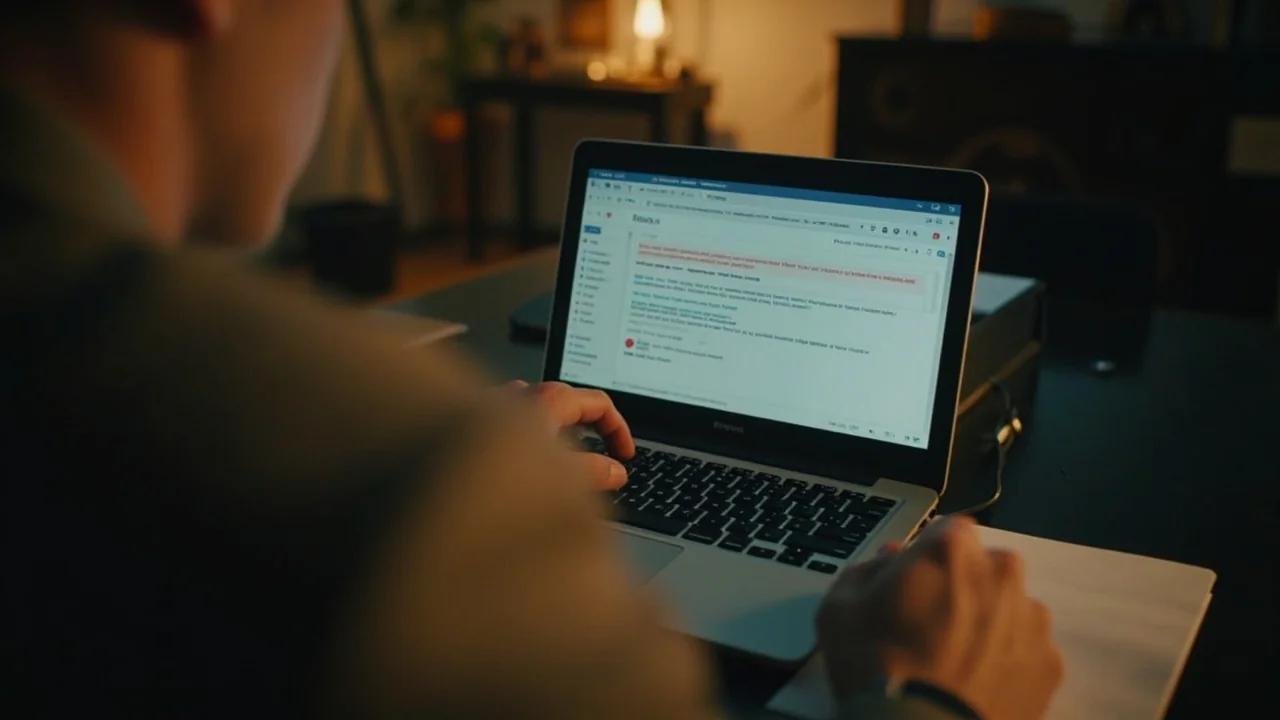
No single warning sign proves a message is fake, but several together should stop you cold.
First, check whether the sender address matches the brand
A message can display a familiar name while using a completely different address underneath. Google's Gmail Help advises users to watch for suspicious messages that look real but ask them to share personal information or click a link they were not expecting (1).
Look past the display name and check the full sender address. If the email claims to be from Google, Microsoft, your school platform, or a bank, the real sending domain matters.
Example: is a Google security email real?
A message from support@google-security.net warning of an unusual sign-in or asking you to "verify your account" is not a real Google email. Genuine Google security messages come from @google.com or a documented Google subdomain, never from an unrelated domain. Use these checks before acting on any message that claims to be from a major brand:
- Read the full sender domain (everything after the
@), not just the display name. - Do not use the link inside the message to sign in or "verify" anything.
- Open the real Google Account security page (
myaccount.google.com) in a new browser tab. - If the sender domain is unfamiliar — for example
google-security.netor a similar look-alike — treat the message as suspicious until you have confirmed the alert through Google's own security page.
Next, watch for urgency before clarity
A lot of phishing works by making you feel behind, exposed, or about to lose access. The language may mention account suspension, unusual activity, billing issues, or urgent document review.
Urgency alone does not prove a scam. Real services sometimes send urgent alerts. But a legitimate security message should still hold together when you inspect it calmly.
Then check whether the link goes where it claims
Hover over the link before clicking. On a phone or tablet, use a long press or another safe preview method if your device offers one. If the visible text says one thing but the destination says another, treat it as suspicious.
Google's account-recovery guidance is a good reminder here: when account security is involved, going directly to the service in a new tab is safer than following a message link (2).
Never ignore requests for passwords or codes
Phishing pages often ask for:
- your email password
- a multi-factor authentication code
- a password reset link or recovery code
- your date of birth or other security question answers
No legitimate service will email you asking for your password or MFA code. Any message that does is a phishing attempt, regardless of how official it looks.
Watch for requests to approve access
Some attacks do not ask for a password — they ask you to approve a sign-in prompt or OAuth access. If you receive a sign-in approval request that you did not initiate, do not approve it. Check your Google account activity directly at myaccount.google.com (3).
What to do if you receive a suspicious message
If you are not sure
Do not click, reply, or download anything. Open a new browser tab and navigate directly to the service in question using a known address — for example, go to google.com and sign in from there, rather than from a link in the message.
If you already clicked
Change your password from a clean device immediately. Check your account activity for anything unusual. Revoke any third-party access you do not recognise. If you use the same password elsewhere, change it there too — a password manager makes this manageable (4).
If you entered financial information
Contact your bank or card provider immediately. Monitor your statements for any unusual transactions. Consider placing a credit freeze with a credit reporting agency if you think your details may have been captured.
If you are in a school environment
Report to your IT team or school leadership. If student data may have been involved, the school may have reporting obligations under the Privacy Act 2020. Do not try to manage this alone.
If you have been impersonated
If you receive a message that appears to come from you — such as an email to your contacts claiming you sent them something you did not send — your account may have been compromised or spoofed. Change your password, enable MFA, and notify your contacts that you did not send the original message. If it was a spoofed message (appearing to come from you without actually using your account), report it to the platform involved and warn anyone who received it.
Knowledge check
Test your understanding of phishing detection with these questions. Remember to click on each question to reveal the answer.
Sources and references
[1] Google. (2025). Avoid and report phishing emails. https://support.google.com/mail/answer/8253
[2] Netsafe New Zealand. (2025). Phishing. https://netsafe.org.nz/scams/phishing
[3] National Cyber Security Centre UK. (2023). Password managers. https://www.ncsc.gov.uk/collection/top-tips-for-staying-secure-online/password-managers
[4] New Zealand Police. (2024). Internet scams, spam and fraud. https://www.police.govt.nz/advice/email-and-internet-safety/internet-scams-spam-and-fraud
What to do next
- Build your account security with Passwords, passphrases, and MFA: a simple guide.
- Check the related insight on fake Google password reset emails.
- Compare examples against Phishing Anatomy — NZ-Specific Examples.
- If someone has already clicked, use What To Do When a Student Clicks a Phishing Link.
- Follow the student pathway at Cyber Security for Students in New Zealand.