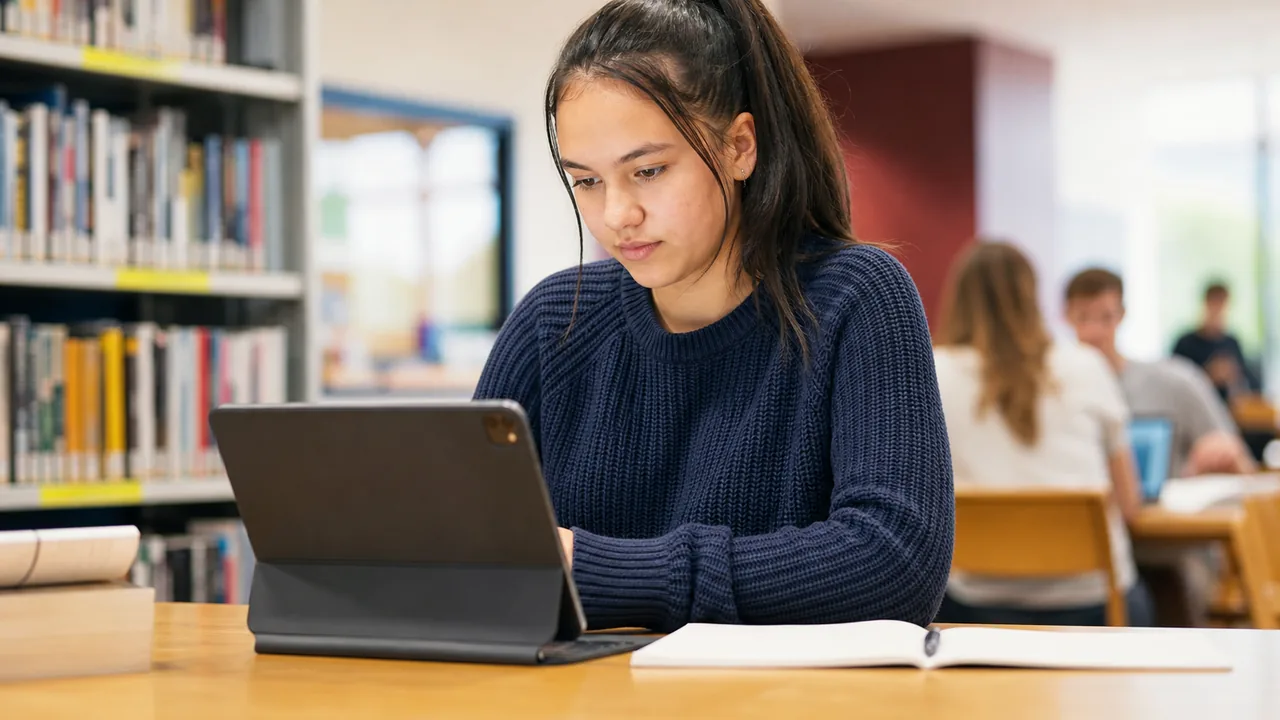
Digital Safety Basics for Students in New Zealand
A practical student-friendly guide to safer passwords, suspicious messages, privacy settings, app permissions, and knowing when to ask for help.
Quick answer
Protect your accounts with strong passwords and MFA, slow down around suspicious messages, check what apps are allowed to access, and ask for help early when something feels off. Digital safety for students is mostly about everyday habits that stop small mistakes from turning into bigger problems.
This guide covers the things that matter most for students in New Zealand: protecting your accounts, spotting suspicious messages, understanding what you are agreeing to when you use an app or website, and knowing who to go to when something goes wrong.
Why account security matters to students
Your online accounts contain information about you — your name, your school, your email, and often your communications. If someone gets access to your account, they can:- read your messages or emails
- post things in your name
- access personal information stored in the account
- use the account to trick people you know into clicking something
This is not just about losing your Instagram followers. It is about your information being used in ways you did not choose. Account security is your first line of defence.
Creating passwords that actually protect you
A weak password is one of the most common ways accounts get broken into. Here is what to avoid:
- your name, birthday, or pet's name — these are easy to guess from a quick search
- the word "password" or "123456" — these are the first things hackers try
- the same password on multiple accounts — if one service gets hacked, all your accounts are at risk
A stronger approach: use a passphrase. Think of a sentence you can remember, then use the first letters or a mix of words. For example, "My dog Pip loves running in the park" becomes a passphrase like "MdpLr1tP" or similar — long, unique, memorable (1). For more detail, Passwords, passphrases, and MFA: a simple guide has a full explanation of how this works in practice.
Never share your password with friends. Friendship is not a reason to share login details — if a friend unexpectedly asks for your password, it is okay to say no and ask a parent or teacher about it.
Multi-factor authentication — what it is and why it matters
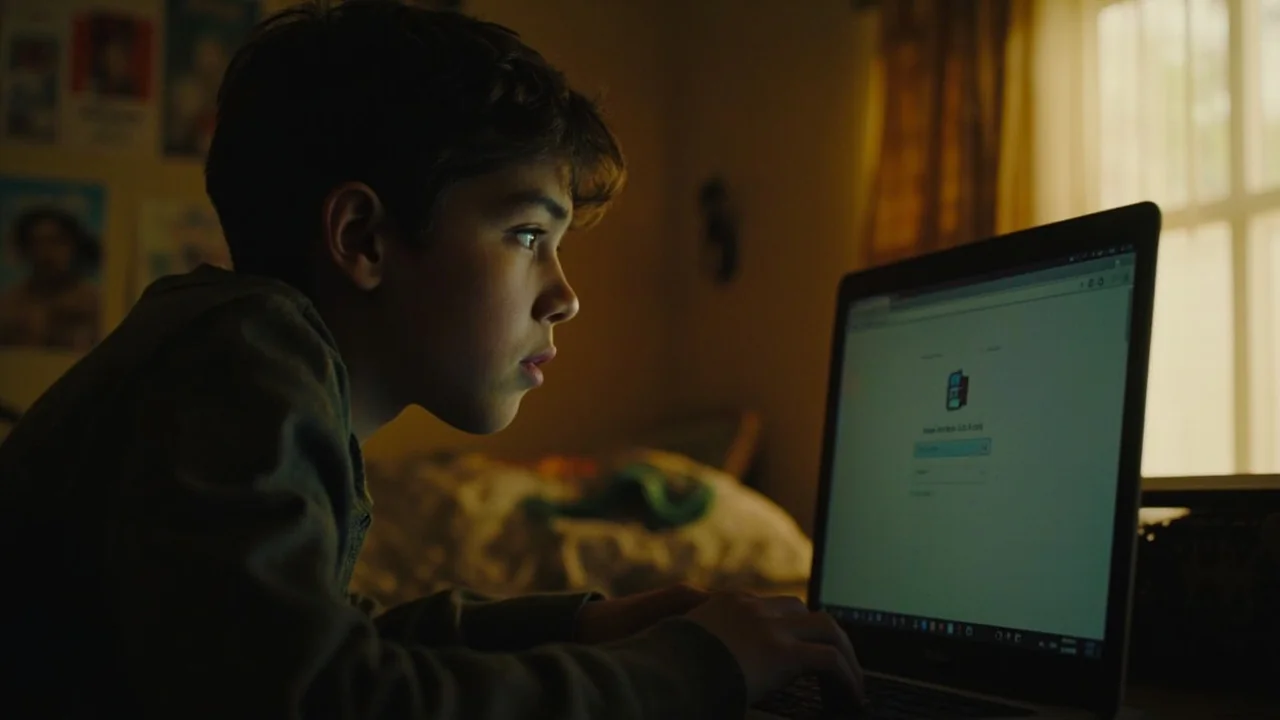
MFA means that to log into your account, you need something more than just your password — usually a code sent to your phone or generated by an app.
This is important because even if someone finds out your password, they still cannot get into your account without also having your phone or authenticator app. Turn MFA on for any account that offers it, especially your school email, any account connected to your real name, and any account that has payment or personal information in it (1).
Spotting suspicious messages
If you receive a message — email, text, or a direct message on a platform — that asks you to:- click a link and log in
- give your password or a code
- download an attachment you were not expecting
- buy something or transfer money for someone you have not met in person
Treat it as suspicious until you have checked it is real. Even if the message looks like it comes from a friend, a popular game, or a brand you know, it could be a fake (2).
Signs it might be fake:
- the sender address looks unusual or has extra numbers and letters
- the message creates urgency — "act now", "your account will be closed"
- it asks for something a real company or friend would not ask for by message
- the link destination does not look right when you hover over it
For a full guide, see How to Spot Phishing Emails, Scams, and Fake Messages.
What to do if something feels wrong online
Trust that instinct. If something feels off — a message, a website asking for too much information, a person online who is asking questions that make you uncomfortable — you do not have to push through it.
Here is what to do:
- Do not click or respond if you are not sure.
- Tell a parent, teacher, or another adult you trust. You do not have to handle it alone.
- If it is something serious — like someone asking for personal information, a friend who has been hacked, or something that has made you feel unsafe — you can also contact Netsafe at netsafe.org.nz for free, confidential support in New Zealand (3).
Understanding privacy settings and app permissions
When you download a new app or sign into a website with your Google or Apple account, it often asks for permissions — access to your camera, microphone, contacts, location, or photos.
Ask yourself:
- Does a simple game really need access to my contacts?
- Does a homework tool need to know my location?
- Does a new platform need access to my camera and photos?
It is okay to say no, or to say "only while I am using the app." You can also go into your device settings later and adjust permissions for any app (4).
Your school email account should only be used for school-related tools and platforms — not for signing into random apps or websites you find through a search.Being careful about what you share
Anything you post online can be copied, saved, or shared by someone else — even if you delete it. Before posting or sharing:
- Would I be comfortable if my parents, teachers, or future university or employer saw this?
- Does this reveal where I live, my school, or other personal details?
- Am I sharing something about someone else that they have not agreed to?
If the answer to any of these is unclear, pause before posting.
Knowledge check
Test your understanding of digital safety basics for NZ students with these questions. Remember to click on each question to reveal the answer.
Sources and references
[1] National Cyber Security Centre UK. (2023). Password managers. https://www.ncsc.gov.uk/collection/top-tips-for-staying-secure-online/password-managers
[2] New Zealand Police. (2024). Internet scams, spam and fraud. https://www.police.govt.nz/advice/email-and-internet-safety/internet-scams-spam-and-fraud
[3] Netsafe New Zealand. (2025). Staying safe online. https://netsafe.org.nz/
[4] New Zealand. Office of the Privacy Commissioner. (2025). Your rights. https://www.privacy.org.nz/your-rights/
What to do next
- Set up stronger passwords with Passwords, passphrases, and MFA: a simple guide.
- Learn to spot fake messages with How to Spot Phishing Emails, Scams, and Fake Messages.
- Check AI Safety for Students in New Zealand if you use AI tools for schoolwork.
- Follow the student pathway at For Students.